Users
How Aeglero manages user accounts: invites, clinical credentialing fields, account locking with session kill, and offboarding that preserves audit-trail integrity.
How User Accounts Work in Aeglero
Each person who works at your facility gets one user account, scoped to your clinic. An account holds the basics (username, full name, email, phone) plus exactly one role from the Roles system that defines what they can do, plus a set of clinical credential fields built specifically for behavioral health staff: NPI number, DEA number, state license, primary and secondary licenses, NADEAN number, and a list of post-nominal credentials like LCSW, MD, RN, or LPC. Care team memberships are kept separately, so a clinician can move between teams without losing or changing their role. Usernames must be at least 3 characters and unique within your facility.
Adding New Users: Invite Link or Direct Password
From Manage Users (gated by the Manage Users permission), click New User and fill in the basics, role, and any clinical credentials. You then choose how the user gets their password: send them a secure invite link, or set the password yourself and hand it over. The invite link is a one-use, 48-hour token. The new user clicks it, sees a short setup page, and chooses their own password without you ever seeing or handling it. If the link expires or gets lost, you can regenerate a fresh one for that user with a single click. The previous link is invalidated automatically so nobody can use a stale token.
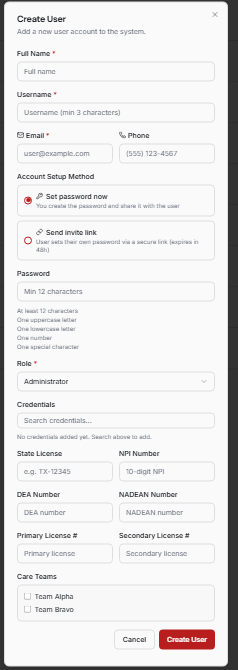
Creating a new user. Fill in the basics, role, and clinical credentials, then choose whether to send a 48-hour invite link or set a password directly.
Password Policy and Account Locking
Every password, admin-set or user-chosen, has to meet Aeglero's complexity policy: at least 12 characters with a mix of uppercase, lowercase, numbers, and a special character. Failed login attempts are tracked per user and trigger an automatic temporary lockout if they pile up. For deliberate cases like a terminated employee or a compromised account, an admin can permanently lock the account from the Manage Users page; this not only blocks future logins but immediately kills every active session that user has open, so a logged-in browser tab stops working within seconds. Unlocking clears all flags and resets the failed-attempt counter. Admin-driven password resets also kill active sessions to force a clean re-authentication. Two self-protection rules are enforced at the API level: you can't lock your own account, and you can't change your own role. Even an admin needs another admin to do either.
Offboarding Without Losing History
When staff leave, you don't delete their account; you lock it. HIPAA audit requirements mean every prior action a clinician took (notes filed, charts viewed, patients discharged, roles changed) needs to stay attributed to them forever; deleting a user would either orphan that history or make it ambiguous. Permanently locking the account blocks all future access, kills every active session immediately, and preserves the full audit trail unchanged. From there you can reassign their care team memberships to whoever's covering their patients, and their historical activity remains queryable in the system logs by username, role, IP address, or date range. The account can be unlocked later if they ever return, with the same username, same history, picked up where it left off.