Roles
How Aeglero's role-based permissions work: system defaults, custom roles, smart dependencies, and audit trails.
How Roles Work in Aeglero
Every user in Aeglero has exactly one role, and that role is a bundle of permissions that controls what they can see and do. Roles are scoped per facility, so your clinic's roles don't affect anyone else, and changes you make stay inside your account. Aeglero ships with a set of system default roles (Admin, Psychiatrist, Technician, and others) that cover the most common job functions. You can create unlimited custom roles on top of that for positions specific to how your facility operates.
Creating and Editing Roles
Open Manage Roles from your administration menu to see all roles in a left-hand list with a focused editor on the right. To create a new role, click New Role and give it a slug (a short internal name like 'counselor' or 'case_manager') along with a display name shown to users. System default roles are partially locked: you can rename their display name but can't change the underlying slug. The Admin role is always locked at full access; you can rename it, but its permissions stay maxed out so you can never accidentally lock yourself out of your own clinic.
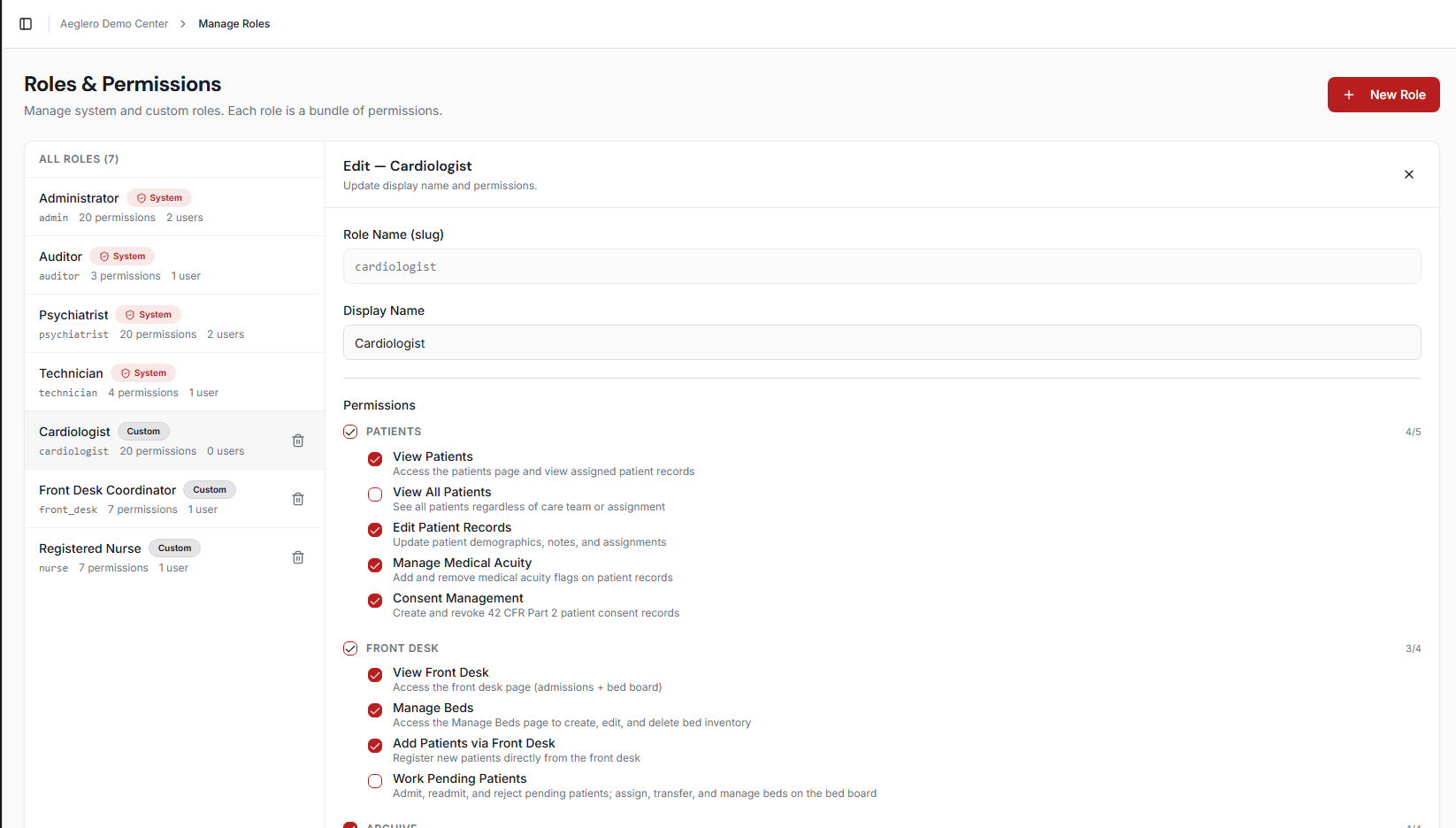
Manage Roles. Roles list on the left with permission and user counts; the right-side editor shows the grouped permission catalog for the selected role.
The Permission Catalog
Permissions are grouped by the area of the application they control: Patients (view patients, view all patients, edit records, manage medical acuity, manage 42 CFR Part 2 consents), Front Desk (view the bed board, manage bed inventory, register new patients, work pending admissions), Archive (view discharged patients, discharge and reactivate, manage archived forms), Workflows (build and manage form templates), Forms (delete completed forms, gated separately because completed forms are legal medical records), and Administration (manage users, manage roles, view system logs, manage care teams, manage tenant settings). Each permission maps directly to a feature you can see in the UI; there are no abstract permissions that don't tie to something real.
Smart Permission Dependencies
Some permissions only make sense alongside others. You can't manage beds without first being able to view the front desk page where they live, and you can't edit a patient without being able to view patients in the first place. Aeglero enforces these relationships automatically: when you check Manage Beds, it auto-checks View Front Desk for you. Uncheck a base permission and every permission that depends on it is removed in the same click. This prevents broken roles where a user has 'edit' without 'view', and means you can build new roles by toggling the capabilities you want without thinking about underlying prerequisites.
Assigning Users and Auditing Changes
Each role on the list shows how many permissions it carries and how many users are assigned to it, so you can see at a glance who's affected by any change. You can delete a custom role only when no users are assigned to it; Aeglero blocks the deletion if anyone still depends on it and tells you exactly how many people to reassign first. Every role change (create, update, delete) is written to the audit log with the user who made the change, the timestamp, and the exact permissions that were added or removed. Combined with the principle of least privilege (give each role only the permissions its job actually needs), this gives you a complete, queryable history of who could do what, and when.