Patients
How Aeglero structures patient records around episodes, prevents duplicate charts at intake, surfaces clinical acuity at a glance, and enforces care-team-scoped access on every record.
How Patient Records Are Structured
A patient record in Aeglero contains the person (demographics, contact info, insurance, photo, clinical credentials) and one or more Episodes. Each episode is a self-contained admission cycle with its own admit and discharge dates, assigned bed, primary diagnosis, and forms. When someone is admitted for the first time, Episode #1 is created automatically alongside the patient. When that same person comes back later, you readmit them rather than starting over, and Episode #2 begins, leaving Episode #1's data permanently preserved in the chart. This separation matters in residential addiction treatment, where 30-day, 60-day, and 90-day episodes layer up over time and you need to see each stay's outcomes side by side without losing the chronology.
Creating a Patient with Duplicate Protection
New patients are created from the Front Desk page using a comprehensive intake form covering demographics, contacts, address, emergency contact, clinical fields, and an optional photo. As you type the first and last name, Aeglero runs a duplicate check in the background using the strongest signal it has: name plus date of birth is the highest-confidence match, SSN last 4 is the next, and a name-only fuzzy match is the fallback when neither is provided. If a possible duplicate is found, the existing chart is shown with its current status, prior episodes, and last admission date, so the front desk can readmit the existing patient instead of accidentally splitting their history into two charts. Patient codes (PT-001, PT-002, …) are auto-generated unless you supply your own facility-specific code.
The Patient Profile and Form Workflow
Each patient profile opens to an overview with their photo, demographics, current status, current episode summary, and acuity flags up top. The Forms area is organized into category tabs that follow the actual rhythm of residential treatment (Pre-Admission, Admission, Consents, Withdrawal Monitoring, Clinical Assessments, Outcome Measurements, Sessions, Discharge), and you can add custom categories on top of these defaults. Within a category, every form your facility's templates expose for that patient is listed with its status (draft or completed). Forms support drawn digital signatures captured directly on a canvas, so signed clinical documents stay legally valid. Templates marked as required-for-admission or required-for-discharge are visually called out, and the system blocks the corresponding admission or discharge action until they're done.
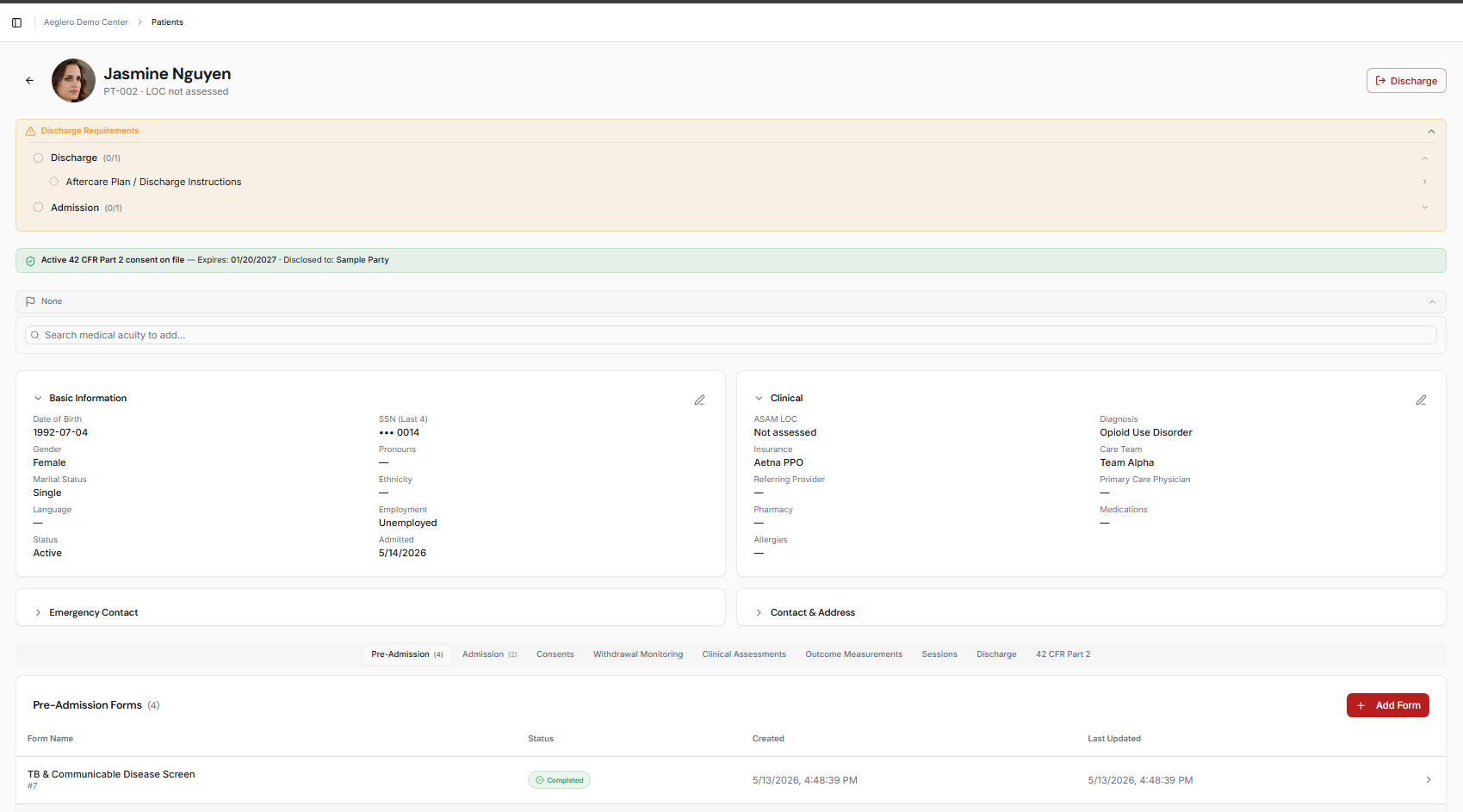
The patient profile. Acuity flags ride along the top so any staff member opening the chart sees them immediately, the current episode is summarized below, and forms are grouped into category tabs that match residential treatment workflow.
Acuity Flags and 42 CFR Part 2 Consents
Acuity flags are clinical safety markers (Seizure History, Cardiac Risk, Fall Risk, Suicide or Self-Harm Risk, Severe Withdrawal Risk, Pregnancy, Infectious Disease Precaution, and Elopement Risk) that appear at the top of the patient record so any staff member opening the chart sees them immediately. They're gated by a separate Manage Medical Acuity permission so not every clinician can flip them; typically nursing or medical staff own this. The same patient profile also has a Part 2 consents section where you create, view, and revoke 42 CFR Part 2 consent records: each consent tracks the recipient, the purpose of disclosure, and an expiration date, and revocations are a permanent audit-logged event. Together these two surfaces are the difference between an EMR that 'supports' behavioral health and one that's actually built for it.
Search, Access Control, and Audit
The patient list supports substring search by first name, last name, or patient code, plus a status filter to narrow the view to active, pending, inactive, or archived patients. What appears on the list isn't just a UI filter; it's enforced server-side by Aeglero's two-axis access control: users without the View All Patients permission only see patients assigned to a care team they're a member of, users with only the Front Desk role can only access pending patients, and users with only Archive access can only access discharged ones. Every successful and failed patient access is written to the audit log with the user, IP, timestamp, the patient code touched, and a short description; rapid repeat views by the same user on the same chart are throttled so the log stays useful instead of becoming spam, but every meaningful access leaves a trail.