Administration
How Aeglero handles administration: the Settings page, MFA enforcement, and a tour of the other permission-gated admin surfaces.
How Administration Is Organized in Aeglero
There isn't one mega 'admin dashboard' in Aeglero. Administration is split into focused surfaces, each with its own permission gate, so you can hand individual responsibilities to specific roles instead of giving someone a single 'super admin' key. Manage Users, Manage Roles, Manage Care Teams, System Logs, Workflows (templates and categories), Manage Beds, and the Settings page each live separately and require a different permission to enter. The umbrella permission that doesn't have its own dedicated learning page is Manage Settings (everything on the Settings page itself), and that's the focus here. The other admin surfaces have their own learning pages with deeper walkthroughs.
The Settings Page
Open Settings from the navigation to see three cards: Practice Information, Security, and Multi-Factor Authentication. Practice Information shows your facility's name, NPI, phone, email, and address, all displayed read-only. To update any of these, email ticket@aeglero.com; routing practice-identity changes through support is intentional, since fields like name and NPI flow into clinical documents and billing identifiers and shouldn't be edited casually inside the app. Security shows your facility's session timeout (15 minutes of inactivity before automatic logout) and login attempt limit (5 failed tries before temporary account lockout). These values are currently fixed at HIPAA-aligned defaults rather than per-tenant configurable, which keeps every Aeglero facility on the same baseline security posture.
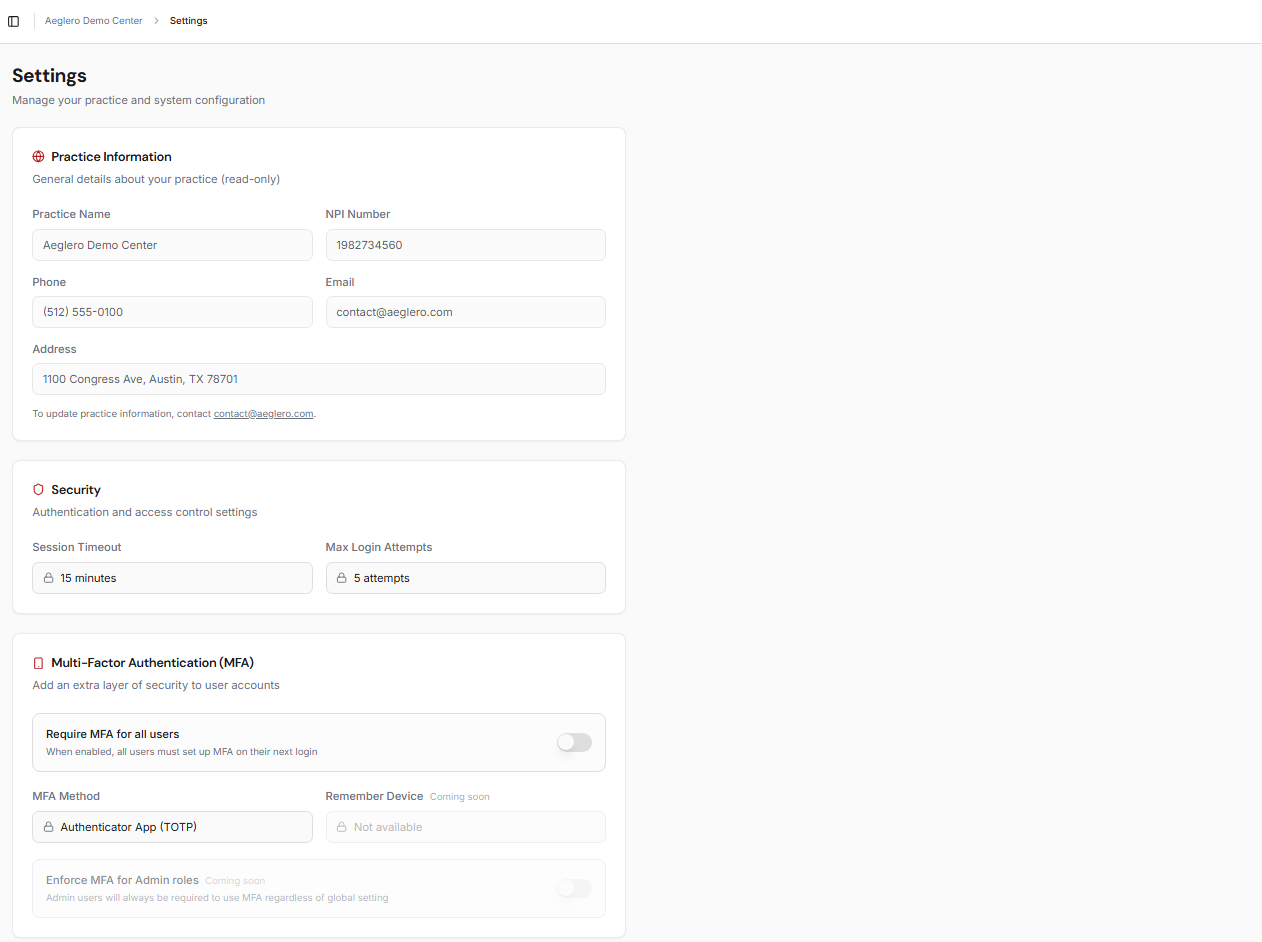
The Settings page. Practice Information is read-only by design (changes route through support), Security values are HIPAA-aligned defaults, and the MFA tenant toggle decides whether enrollment is required facility-wide.
Multi-Factor Authentication: Tenant Toggle and User Enrollment
MFA in Aeglero has two layers. The tenant-level toggle on the Settings page (gated by Manage Settings) decides whether MFA is required across the whole facility. When ON, every user without MFA configured will be forced into the TOTP setup flow on their next login and won't be able to use the app until they complete it; when OFF, individual users can still enroll voluntarily but aren't pushed. The user-level enrollment is the actual TOTP setup: Aeglero generates a secret, displays a QR code in the app, and the user scans it with any standard authenticator (Google Authenticator, Authy, 1Password, Microsoft Authenticator, etc.) and confirms a 6-digit code to lock it in. Once a user is enrolled and the tenant requires MFA, they cannot turn their own MFA off; only an admin disabling the tenant requirement can release that. Every MFA event (setup attempt, successful enable, manual disable, tenant toggle change) is written to the audit log with the user, IP address, and outcome.
Where the Rest of Admin Lives
Each of the other admin surfaces has its own focused learning page worth reading: Users covers how to create accounts with invite links or direct passwords, manage clinical credentialing fields like NPI and DEA, and lock or unlock accounts (with permanent locks killing all active sessions immediately). Roles covers the granular permission system, including the smart dependency auto-resolution that prevents broken roles. Care Teams covers how staff groups gate patient visibility as the second axis of access control. System Logs covers the SHA-256 hash-chained tamper-evident audit log and one-click integrity verification. Templates covers the form builder including the 15 field types, three-tier role access (view / edit / sign), required-for-admission and required-for-discharge gates, recurring forms with auto-draft generation, and the form-category management. Manage Beds (inside the Front Desk page) covers bed inventory, units, and the reorder UI. Together those surfaces plus the Settings page are the entire administration story: focused, permission-gated, and audit-logged end to end.